UX/UI Case Study
Live TTC
Making TTC disruptions easier to understand
Live TTC started from a problem I kept noticing when using transit: when something goes wrong, it isn’t always easy to figure out what’s happening, how long it might last, or what to do instead. I wanted riders to be able to check arrivals, disruptions, affected stations, and alternative options in one place.
Project Type
Personal Mobile Concept
My Role
UX/UI Designer
Timeline
6 weeks
Tools
Figma, Figma AI
01
Overview / Challenge
The Challenge
Designing a real-time transit app to help Toronto riders navigate sudden delays and route disruptions across the entire TTC network.
The idea for Live TTC started from a problem I kept noticing when using transit: when delays or service changes happen, riders often have to check multiple places just to understand what’s going on. Station staff, announcements, TTC email alerts, Google Maps, and the TTC website can all provide part of the picture, but the information can still feel scattered.
Riders still need to understand whether their route is affected, which stations are involved, how much extra time to expect, and what they can do next. I wanted the app to bring that context together so riders could make decisions faster during a disruption.
How can TTC riders quickly understand what’s happening, how it affects their trip, and what they can do next?
02
Understanding the Problem
User interviews revealed that riders get overwhelmed trying to find alternative routes during unexpected service delays.
I started with my own transit observations and reviewed public rider discussions to identify recurring pain points around disruptions and service information. Three themes consistently appeared: information was scattered, alerts didn't always explain what to do next, and important details could be difficult to scan quickly.
Information is scattered
Riders may have to move between station announcements, TTC email alerts, Google Maps, the TTC website, or social media just to understand what is happening. That makes it harder to know which update is current or relevant.
Alerts don’t always explain the next step
Knowing there is a delay is only part of the problem. Riders also need to understand the cause, which section is affected, how long the issue may last, and whether there is another route they can take.
Important information can get buried
Long or vague alerts can make it harder to quickly understand what matters. I wanted the main disruption details to be clear within seconds, while keeping more technical information available for riders who want to look deeper.
Reddit public user reviews
Reddit public user reviews
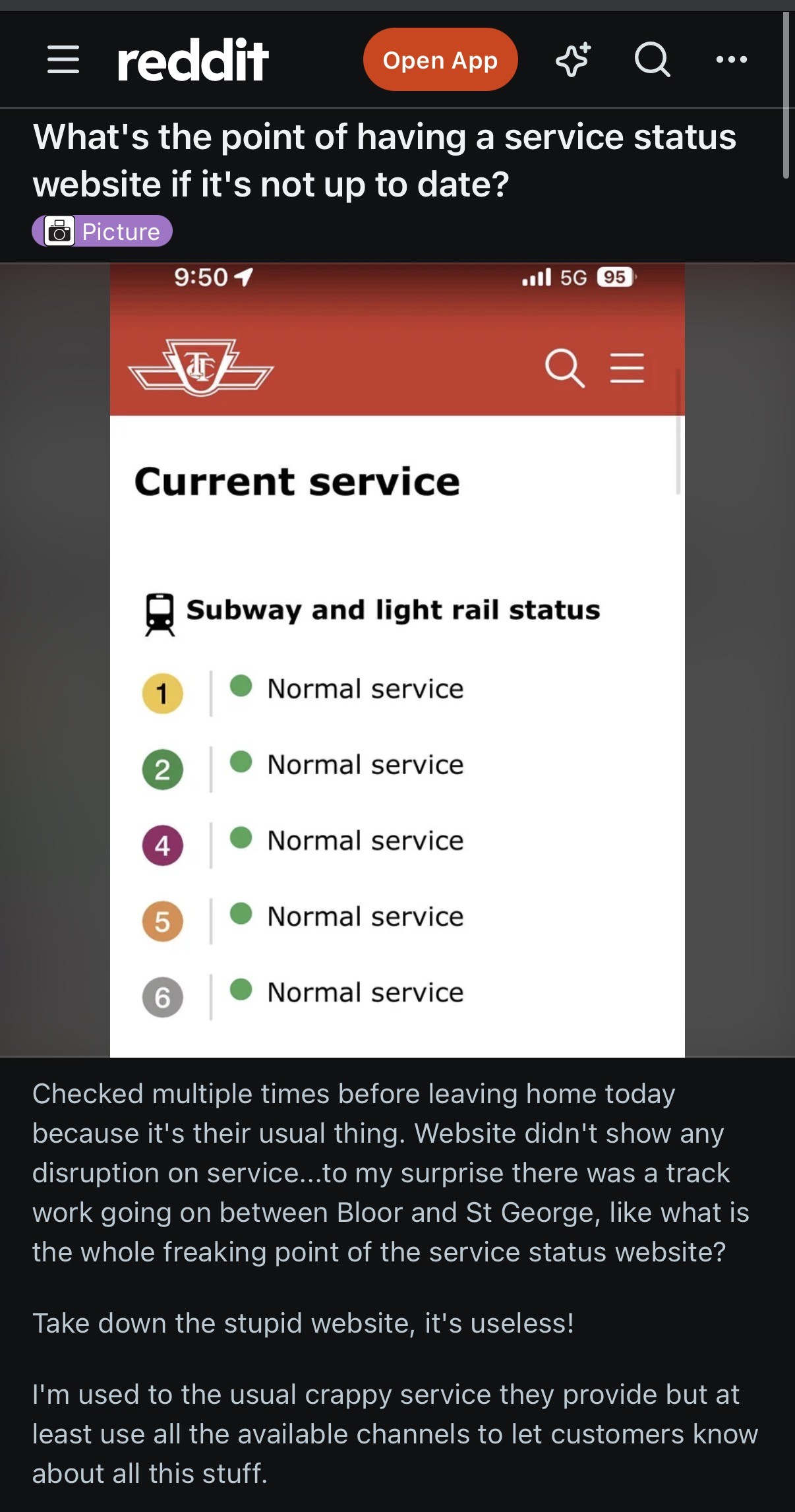

“
Like a lot of you, I got tired of trying to decode vague text alerts and scrolling through Twitter/X just to figure out if my commute was doomed
Community discussion on r/TTC
03
Exploring the Experience
Mapping out clear step-by-step navigation paths for different commuter profiles.
I used low-fidelity wireframes to work through the refined navigation, information hierarchy, and main user flows before focusing on the final visual design. The goal was to make each part of the app feel purposeful and keep disruption information easy to reach.


Key Iteration
Simplifying the navigation
My first concept included Lines, Alerts, Plan, Saved, Map, and an AI assistant. As the screens developed, several features started to overlap and the navigation felt crowded.
I simplified it to Home, Alerts, Where To, Map, and Saved, moved Settings to the top-right, and removed the AI assistant. I also narrowed Plan into Where To so it stayed focused on how current disruptions affect a rider’s trip instead of becoming another full trip-planning app.


UI System
Live TTC
Making service information easy to scan
The UI system uses consistent typography, transit colours, service-status treatments, and reusable components to help riders understand conditions quickly. Status information uses labels and visual cues rather than relying on colour alone.

04
Designing the Solution


Structuring clean alert screens, high-contrast live tracking routes, and instant disruption notifications for commuters on the go.
I focused the final design around one idea: give riders the most important disruption information first, then let them go deeper when they need more detail. The interface uses familiar TTC colours, clear status labels, consistent card patterns, and progressive disclosure so the experience stays easy to scan while still providing useful context.
Screen Comparison
Home brings together network status, current delays, severity, and next arrivals so riders can quickly understand the condition of their route.

Alerts gives riders a dedicated place to open a disruption and understand the affected area, cause, and expected impact.

Design Detail
See exactly what part of the route is affected
Instead of treating a disruption as if it affects an entire line equally, the expanded route view shows affected stations, delay severity, cause, and estimated resolution time. Speed restrictions and more technical information stay secondary so they add context without overwhelming the main update.


Where To connects a network disruption to an actual trip, showing whether the route is affected, how much extra time it may add, and an alternative when one is available.
Feature Highlight
Make the experience easier to adjust
Accessibility is built into the interface through clear labels, icons, readable hierarchy, and status information that does not rely on colour alone. Settings also gives riders control over larger text, high contrast, reduced motion, spoken alerts, accessible routes, and elevator status.

05
Key Design Decisions
01
Where To over full trip planning
What I chose: I narrowed the original Plan feature into Where To, a disruption-aware trip check rather than a full transit planner.
Why: As I developed the feature, it started to feel too similar to Google Maps or Transit. I wanted it to stay focused on the original problem: helping riders understand whether a disruption affects their trip, how much time it may add, and what alternatives are available.
Trade-off: The feature is less comprehensive than a full trip planner, but it keeps the product more focused.
02
Remove the AI assistant
What I chose: I removed the AI assistant from the main navigation.
Why: Home, Alerts, Where To, and Map already answered the questions I originally imagined the assistant handling. Keeping it started to feel like I was adding AI because it was popular rather than because riders needed it.
Trade-off: Riders lose a conversational shortcut, but the navigation becomes simpler and each feature has a clearer purpose.
03
Reveal details in layers
What I chose: I showed the most important service information first, then let riders expand a route for deeper detail.
Why: Putting affected stations, causes, speed restrictions, and resolution times directly on Home would make the screen harder to scan. Progressive disclosure keeps the first view focused while still making deeper information available when needed.
Trade-off: Some information takes one extra interaction to reach, but Home stays much easier to understand quickly.
06
Testing & Validation
I tested the prototype with two users to see whether the navigation, disruption information, and main flows made sense without explanation. I asked them to complete tasks around checking delays, affected stations, Where To, saving, Settings, and the live map.
Testing Tasks
Check a disruption and identify affected stations and delay time
Use Where To to understand trip impact and alternatives
Save a route/station and explore Settings and Map
Findings
Main navigation, alerts, and delay information were easy to understand
Before → After
Settings opened in a smaller pane, which felt cramped and made the exit behaviour less obvious.

I redesigned Settings as a full-screen page with clearer navigation and more room for accessibility and travel preferences.
07
Outcome & Reflection
What I Learned
The project taught me that simplifying the experience was often more useful than adding features. Removing the AI assistant, narrowing Plan into Where To, and revealing technical information progressively helped keep the product focused on disruption understanding. Testing also showed me how smaller interaction details can still create friction even when the main navigation works well.
Limitations
The prototype uses sample service data and conceptual route behaviour. Figma Make helped with rapid prototyping, but it is not a transit-routing engine, so route accuracy, map alignment, and real-time behaviour would require verified TTC and geographic data in a production version.
Next Steps
I would connect verified TTC data, improve route and map accuracy, test with a wider range of riders, and continue accessibility testing around larger text, reduced motion, spoken alerts, accessible routes, and elevator-status features.
Final Prototype
Final Prototype
Live TTC helped me move beyond designing individual screens and think more carefully about product focus, information hierarchy, trade-offs, and iteration. The final concept is not meant to replace every transit app. It is meant to make one stressful part of using transit, understanding what is happening when service goes wrong and make it easier to navigate.
Add screen
Add screen

Add screen

Add screen
Explore Interactive Prototype ↗
Interactive Figma prototype · Opens in new tab
Next Project
Zayd Tauqeer
UX/UI & Product Designer
© 2026